

Step-by-Step RAC TDE Configuration for Oracle Databases
I recently configured TDE on a two-node Oracle RAC ( CDB/PDB setup), and I decided to put together this step-by-step guide to help anyone going through the same journey. The steps are simple once you understand the flow, so let’s walk through the entire process.
Note:- Before implementing TDE, always verify the current database configuration. Check whether TDE is already set up or not. I’ve seen many cases where DBAs make mistakes simply because they skip this basic step. In Oracle 19c and later, the easiest way to confirm is by checking the wallet_root parameter:
SQL> show parameter wallet_root;

NAME            TYPE    VALUE
--------------- ------- ------------------------------
wallet_root     string
1.Create the Wallet Directory on Both Nodes
First, create a folder on each RAC node where the TDE wallet files will be stored. Make sure the directory path is the same on both nodes.
Node 1
[oracle@discoveryrac1 admin]$ mkdir -p /u02/app/oracle/admin/wallet/tde
[oracle@discoveryrac1 admin]$ cd /u02/app/oracle/admin/wallet/tde/
[oracle@discoveryrac1 tde]$ pwd
/u02/app/oracle/admin/wallet/tde
Node 2
[oracle@discoveryrac2 ~]$ cd /u02/app/oracle/admin
[oracle@discoveryrac2 admin]$ mkdir -p wallet/tde
[oracle@discoveryrac2 admin]$ cd wallet/tde/
[oracle@discoveryrac2 tde]$ pwd
/u02/app/oracle/admin/wallet/tde
This directory will hold files like ewallet.p12 and cwallet.sso.
2.Check Database Mode and Wallet Root
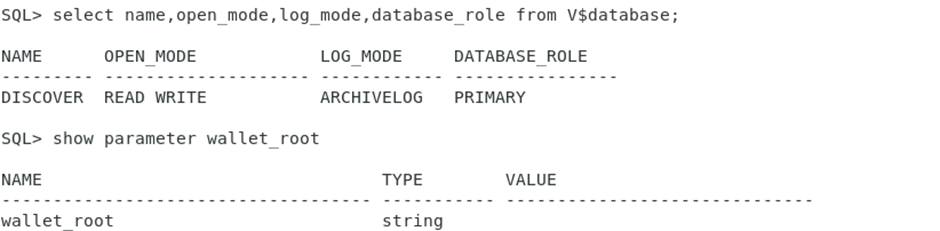
Verify that the DB is open in READ WRITE mode & wallet_root parameter is empty at this point.
3.Set WALLET_ROOT
This tells Oracle where the wallet directory will reside & it’s a static parameter that needs to be reboot the database.
SQL> alter system set WALLET_ROOT="/u02/app/oracle/admin/wallet" scope=spfile sid='*';
System altered.
4.Restart the RAC Database via SRVCTL
[oracle@discoveryrac1 tde]$ srvctl config database
discover
[oracle@discoveryrac1 tde]$ srvctl stop database -d discover
[oracle@discoveryrac1 tde]$ srvctl status database -d discover
Instance discover1 is not running on node discoveryrac1
Instance discover2 is not running on node discoveryrac2
[oracle@discoveryrac1 tde]$ srvctl status database -d discover
Instance discover1 is running on node discoveryrac1
Instance discover2 is running on node discoveryrac2
After startup, check again CDB & PDB level. You should now see the path reflected correctly.
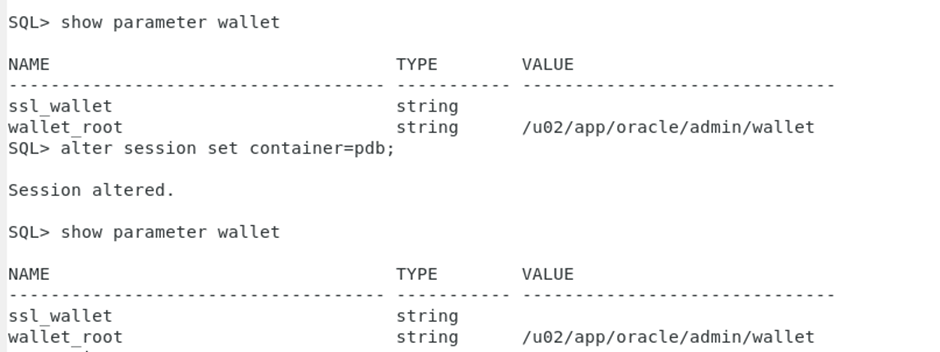
Note:-Before creating the keystore, check that the PDBs are opened; otherwise, the keystore operations may not apply
5. Create the TDE Keystore
First, set tde_configuration parameter
TDE_CONFIGURATION to set the type of keystore that is used for Transparent Data Encryption (TDE) by the root container; united PDBs inherit the value from the root container, isolated PDBs can be set individually.
SQL> alter system set TDE_CONFIGURATION="KEYSTORE_CONFIGURATION=FILE" sid='*';

System altered.
Create the TDE Keystore
Oracle creates the keystore file under following path: /u02/app/oracle/admin/wallet/tde
SQL> ADMINISTER KEY MANAGEMENT CREATE KEYSTORE IDENTIFIED BY discovery;

keystore altered.

SQL> ADMINISTER KEY MANAGEMENT SET KEYSTORE OPEN IDENTIFIED BY discovery container=ALL;

keystore altered.
Verify the status
SQL> select con_id, wallet_type, status from v$encryption_wallet;

    CON_ID WALLET_TYPE		STATUS
---------- -------------------- ------------------------------
	 1 PASSWORD		OPEN_NO_MASTER_KEY
	 2 PASSWORD		OPEN_NO_MASTER_KEY
	 3 PASSWORD		OPEN_NO_MASTER_KEY
6.Create the Master Encryption Key
This key is what will actually encrypt your tablespaces or columns:
SQL> ADMINISTER KEY MANAGEMENT SET KEY IDENTIFIED BY discovery WITH BACKUP container=ALL;

keystore altered.
Verify the status
SQL> select con_id, wallet_type, status from v$encryption_wallet;

    CON_ID WALLET_TYPE		STATUS
---------- -------------------- ------------------------------
	 1 PASSWORD		OPEN
	 2 PASSWORD		OPEN
	 3 PASSWORD		OPEN
7.Enable Auto-Login Wallet
This step makes easier because you won’t have to manually open the wallet after every restart.
SQL> ADMINISTER KEY MANAGEMENT CREATE AUTO_LOGIN KEYSTORE FROM KEYSTORE IDENTIFIED BY discovery;

keystore altered.
8.Copy Wallet Files to the Second RAC Node
Since RAC has multiple instances, both nodes need the exact same wallet files.
[oracle@discoveryrac1 tde]$ scp ewallet_2024110317141637.p12 ewallet.p12 cwallet.sso oracle@discoveryrac2:/u02/app/oracle/admin/wallet/tde/
ewallet_2024110317141637.p12                                                  100% 3995     6.9MB/s   00:00
ewallet.p12                                                                   100% 6747    13.5MB/s   00:00
cwallet.sso                                                                   100% 6792    14.9MB/s   00:00
[oracle@discoveryrac1 tde]$
Verify the status
SQL> select con_id, wallet_type, status from v$encryption_wallet;SQL> administer key management set keystore close identified by discovery container=ALL;
CON_ID WALLET_TYPE STATUS
---------- -------------------- ------------------------------
1 PASSWORD OPEN
2 PASSWORD OPEN
3 PASSWORD OPEN
keystore altered.
SQL> select con_id, wallet_type, status from v$encryption_wallet;
CON_ID WALLET_TYPE STATUS
---------- -------------------- ------------------------------
1 AUTOLOGIN OPEN
2 AUTOLOGIN OPEN
3 AUTOLOGIN OPEN
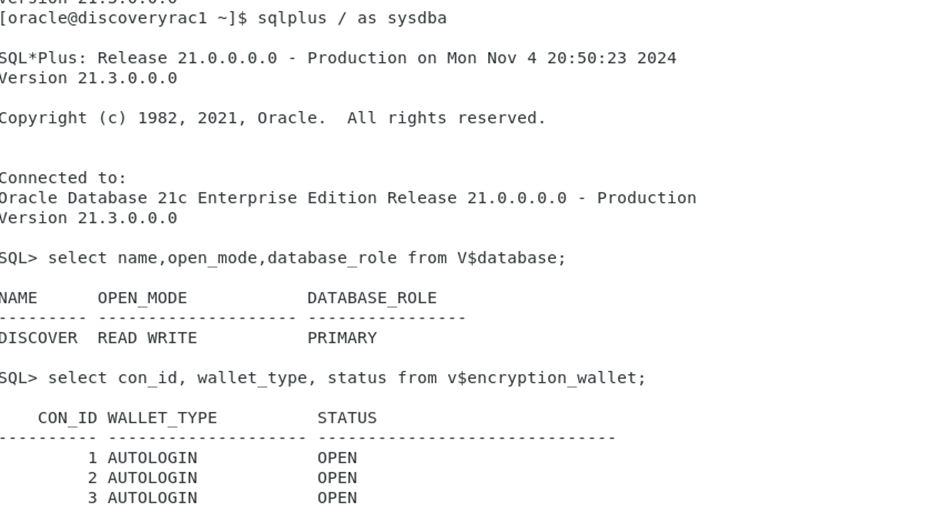
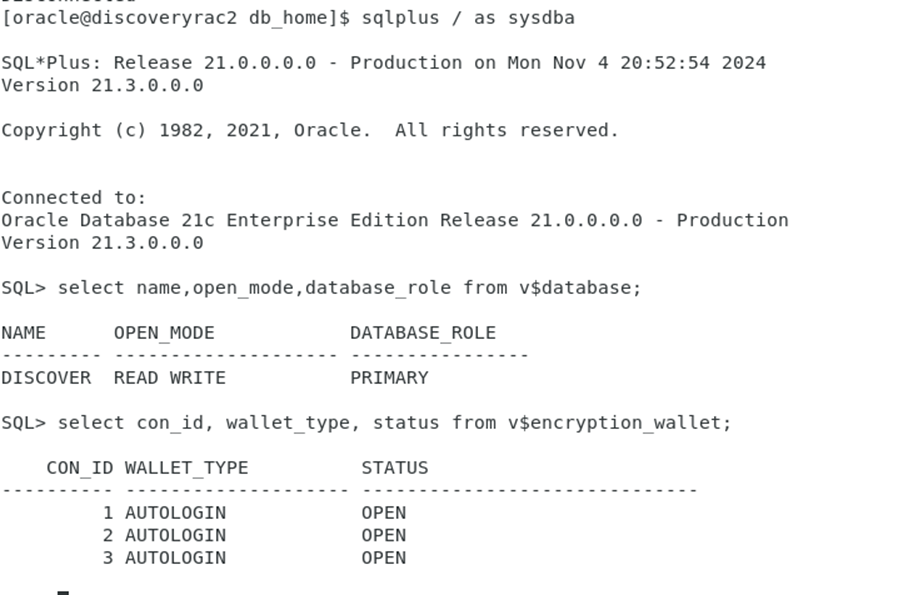
Congratulations! With these steps completed, TDE is successfully configured
Alert: The information provided on this website is for educational purposes only. It has been tested internally, but there is no guarantee it will work in every environment. It is strongly recommended to first test the process in a non-production environment, such as a User Acceptance Testing (UAT) setup. This allows you to verify configurations, identify any issues, and ensure a smooth transition to production, minimizing the risk of disruptions in your live environment. Always conduct thorough testing before applying changes to production systems.
